Two-Player Browser Game Keyboard Not Working? Isolate the Missing Keys
When each player works alone but movement breaks together, test the exact key combination before blaming the game or buying a keyboard.
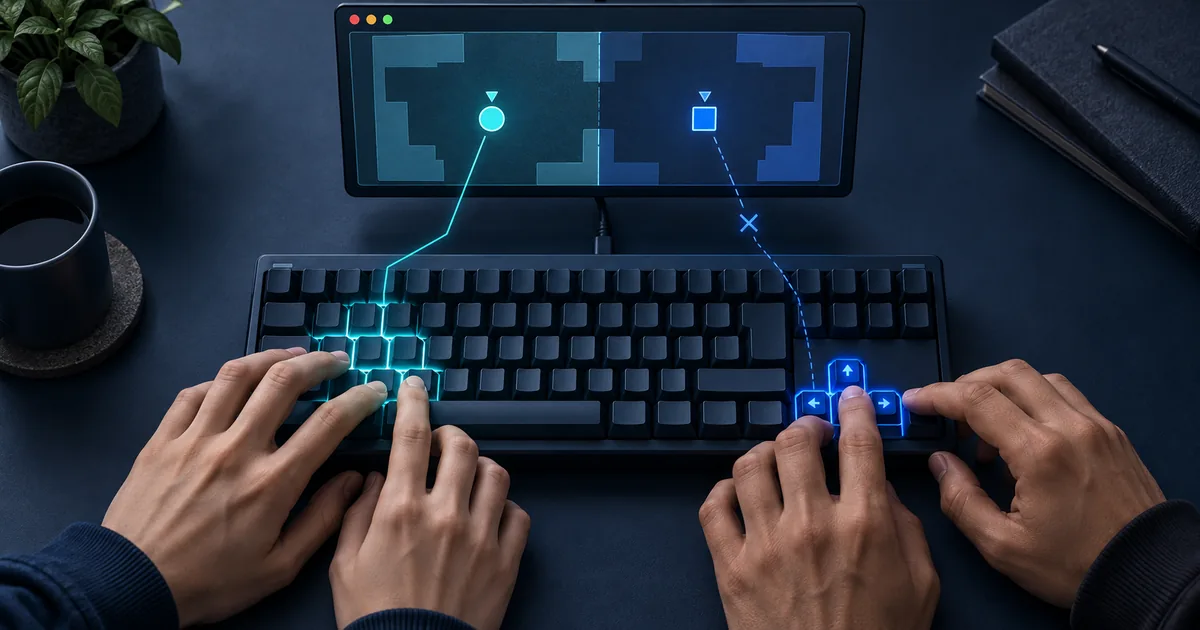
If a two-player browser game keyboard is not working, first check the selected play mode and click inside the player so it receives keyboard input. Then test each player's controls separately. If both work alone but a specific combination fails together, investigate simultaneous-key handling, often called keyboard ghosting, before changing unrelated browser settings.
The important distinction is between a missing command and a delayed action. A character that never jumps while several keys are held needs a different investigation from a game whose entire scene stutters. This checklist helps you describe the failure precisely and find a playable arrangement without assuming a particular keyboard, browser or game is at fault.
Confirm that the game actually offers shared-keyboard play
“Multiplayer” does not necessarily mean two people at one keyboard. A game can require separate devices, use online rooms, provide alternating turns, or offer a local mode with distinct controls. Open its instructions and mode menu before assigning keys. A second person pressing arrows will not create a second player in a mode designed for one.
Start with the two-player collection when looking for local-play options, and check the chosen title's own controls. The broader multiplayer collection serves a different discovery need and can include online formats. Category membership is useful for browsing; it is not a substitute for the current game's mode screen.
Tag and GoBattle 2 are real PlayZunio game pages you can inspect while selecting a session. Read the displayed instructions for the version that launches. This guide does not assign an unverified key map to either title or claim that every browser and keyboard combination has been tested.
Give the player focus before testing movement
Focus determines which part of a page receives keyboard input. If the search box is active, letter keys may type a query instead of moving a character. If a page element outside the player is active, arrows may scroll the page. Click the actual game area, dismiss any in-game start screen, and try one documented movement key.
After opening a menu, switching tabs or closing a settings panel, repeat that focus check. Do not interpret a lost focus state as proof that the keyboard disconnected. Mozilla's KeyboardEvent reference describes keyboard input as events; whether a particular game receives and responds to those events depends on its implementation and active context.
Use fullscreen only if it makes the player easier to operate. Fullscreen changes presentation; it does not repair a keyboard's physical key-reading limits. Keep the browser's exit method available. If a game traps a command you need, leave the player or use the operating system's normal controls instead of repeatedly pressing unfamiliar shortcuts.
Run a controlled two-person input check
Choose a safe menu, practice area or low-stakes moment. One person should describe the key presses while the other watches the action. Avoid testing during a competitive round where an obstacle, cooldown or collision could disguise a correct input. A short written record is more useful than “the controls feel broken.”
- Have player one press and release each documented action alone.
- Have player two repeat that check without player one touching the keyboard.
- Hold one movement key for each player at the same time.
- Add one extra action, such as jump, and record exactly which action disappears.
- Release everything and repeat the same combination in a different press order.
- If remapping is available, compare one alternative binding at a time.
Suppose each player can move and jump alone, but player two cannot jump while player one holds two movement keys. That is a useful observation, not yet a diagnosis. Write the exact keys and order. If instead player two never works, even alone, return to mode selection, controls and focus before testing complex combinations.
Ghosting, blocking and rollover: what the terms mean
People often use “ghosting” for any problem with several keys held together. More narrowly, a ghost input can be a key reported when it was not pressed, while blocking or masking can prevent a real press from being reported. Rollover describes how simultaneous presses are handled. Product labels use these terms differently, so an observed combination matters more than a broad marketing phrase.
Microsoft's keyboard ghosting explanation identifies hardware, software and communication limits as possible causes. Its interactive keyboard demonstration provides a way to observe combinations outside a game. A failed combination there is a clue about the input path; it is not a complete diagnosis of every component.
Do not assume that a keyboard registering several unrelated keys will register the exact set your game needs. Test the shared arrangement, including actions both players use at once. Likewise, a mechanical switch label describes part of the keyboard's construction, not a guarantee that every required combination reaches the browser.
Compare the symptom with the likely next check
| Observed symptom | Useful next check | Avoid assuming |
|---|---|---|
| Keys type into search | Return focus to the player | The game has lost keyboard support |
| One player never responds | Mode selection and that player's documented bindings | Every multiplayer game supports one keyboard |
| A repeatable combination loses one action | Compare the same combination in a keyboard tester | A more expensive keyboard automatically fixes it |
| The whole scene pauses or stutters | Separate rendering or connection trouble from input | Every delayed action is ghosting |
| Only a special key opens a browser action | Check whether the game offers another binding | Fullscreen overrides all browser shortcuts |
Try a different binding only when the game supports it
If there is a controls menu, change one problem action to another key and repeat the same test. Keep a note of the original binding so you can restore it. Choose keys both players can reach comfortably without overlapping hands. A combination that registers is not useful if it forces an awkward posture for an entire session.
Some games provide fixed controls. Do not install a system-wide remapping tool merely because a web guide suggests it as a universal fix. Such tools can affect other applications and may require permissions you do not control. On a managed device, use only the options the game and device owner make available.
Keyboard layouts can also complicate instructions written around letter positions. Check the game's own control display and any layout setting. If pressing the printed letter produces an unexpected action, describe both the physical position and label when reporting the issue. Do not change the operating system's language just to guess what an undocumented binding expects.
Separate game behavior from browser or keyboard behavior
If the exact combination registers in a keyboard demonstration but not in the game, investigate the game's rules. Is the character in a state where jumping is allowed? Does an attack have a cooldown? Is the menu paused? A key press can arrive correctly while the requested action is unavailable. Reproduce the issue in a comparable game state before concluding that input was dropped.
A comparison in another browser can narrow the problem, but change only one variable at a time. Use the same game version and mode, and avoid treating a fresh browser's missing progress as evidence of another failure. The save-data checklist explains why different profiles and playing contexts may not show the same progress.
If every animation slows down, use the existing low-end PC browser-gaming guide to investigate the broader playing conditions. If the player does not start at all, consult the loading guide. Neither symptom justifies clearing game storage as the first response to a missed simultaneous key.
Use a practical fallback instead of forcing the setup
When fixed bindings cannot be used together reliably, an alternating-turn session removes the need for simultaneous controls. You can agree to take separate attempts in Drift Boss, for example, without claiming that the game supplies a special local multiplayer mode. Agree on the same rules and compare only results the game actually displays.
A separate-device online mode is another option when a game explicitly offers one. That changes the problem: you now need a suitable connection, the right room or invitation flow, and compatible versions. Do not promise that plugging in a second keyboard will automatically assign a second player; device separation is something the software must support.
If you have another keyboard already available, comparing it can be informative. Reproduce the exact failed combination rather than trying random keys. There is no need to buy hardware before establishing whether focus, a game rule or a fixed binding is the actual cause. Keep the observation specific enough that another person could repeat it.
Make a useful report when the problem remains
Record the game URL, selected mode, browser and version, operating system, and keyboard connection type. Include the precise keys, press order and expected action. State whether each key works alone and whether the same combination registered outside the game. This is a reproducible report; a claim that “all controls are broken” leaves too many possibilities open.
A short recording can help if it shows the game state and the key sequence without exposing personal information. Avoid including private messages, account details or unrelated tabs. If the issue happens only after a menu closes or a tab switch, include that step. Small differences in sequence can explain why support cannot reproduce a vague report.
Shared-keyboard questions
Why do both players work alone but not together?
A simultaneous-key limit is one possibility, but conflicting bindings or game-state rules can produce similar symptoms. Test the exact combination outside the game and compare a supported alternate binding before naming the cause.
Does a USB keyboard guarantee a fix?
No. The connection type alone does not establish which key combinations will register. Compare the required combination on the actual device, and check a manufacturer's specific documentation if considering different hardware.
Can phone players follow the same checklist?
The focus and mode-selection questions still matter, but touch controls have different limitations. A phone's on-screen keyboard is not a substitute for a game's touch interface. Confirm mobile and local-play support in the title itself.
Should I disable security or privacy settings?
Not as a blanket keyboard fix. First establish whether the game receives ordinary input and where the failure begins. Preserve your normal protections and use documented, narrowly scoped troubleshooting steps for the specific symptom you observed.