Two-Player Games on One Keyboard: Choose a Game and Set Up a Fair Match
Two people, one screen and no confusion over controls. Choose a local mode, test the keys and agree on a match format before the competition starts.
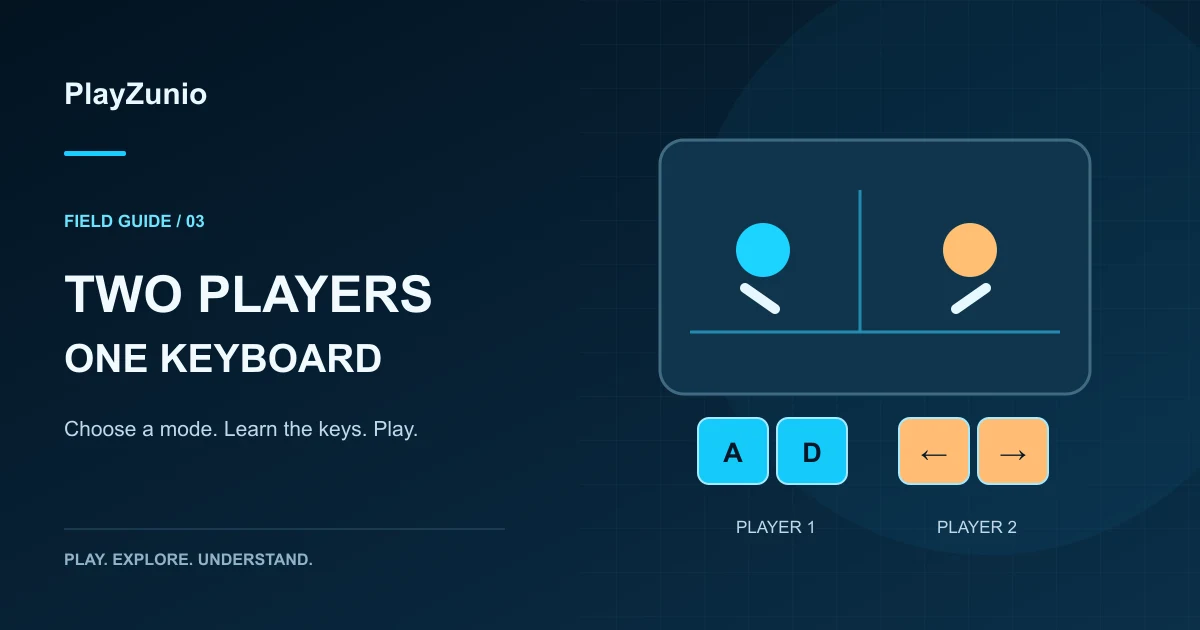
For two-player games on one keyboard, choose a game with an explicit local two-player mode, select both players, and test their controls together before starting a match. A general multiplayer label is not enough: online multiplayer may expect separate devices. Start in the PlayZunio two-player collection and read the selected game's mode screen.
The setup should answer three questions: who controls which character, which inputs each person needs, and what counts as winning. Sorting those out before a round is more useful than arguing about a missed jump after it ends. This guide focuses on choosing and organizing a local session; it is not a promise that every keyboard can register every combination.
Two real places to start on PlayZunio
| Game | Why consider it? | Check before the match |
|---|---|---|
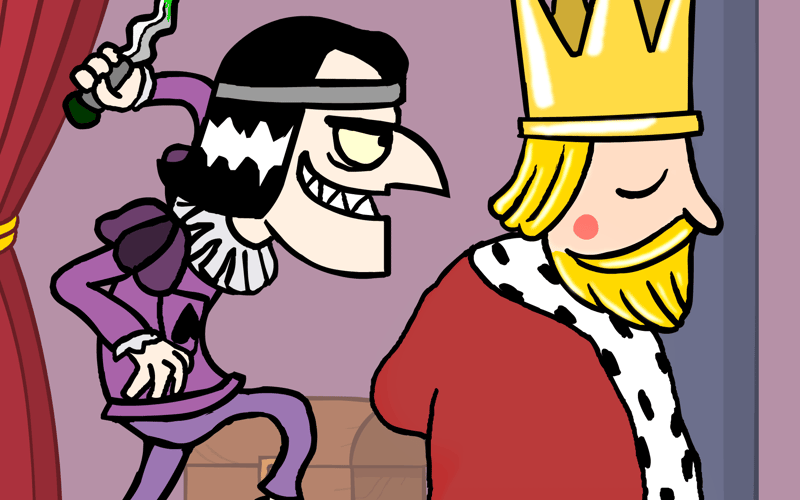
| Tag | A shared-screen chase with an explicit player-selection flow | Player count, movement assignments and the start instructions |
| GoBattle 2 | Varied competitive minigames instead of one repeated challenge | The current round's controls and whether loading completes |
In PlayZunio's October 3, 2026 browser checks, Tag reached the player-selection and controls screens. GoBattle 2 reached a completed-round result, although some resources failed to load. These checks do not establish that every device or minigame works reliably. If GoBattle 2 stalls or displays missing content, return to the collection and choose another title.
Local, online and turn-taking are different formats
Local simultaneous play means both players act in the same running game on one device. Online play connects players through a network and often gives each person a separate screen. Turn-taking means sharing the controls in sequence. All three can be social, but only the first necessarily needs two sets of keys at once.
Use the multiplayer collection when you want to browse more broadly. Before inviting a friend, check whether the title offers a room, a local-player menu or alternating turns. Do not assume a second player can join simply by pressing a different set of movement keys.
Set up the desk and controls
- Put the screen where both players can see the full play area.
- Select the local mode and the intended number of players.
- Read the displayed control assignments instead of guessing.
- Give each person room to reach their keys without crossing hands.
- Click inside the game so keyboard input reaches the player.
- Test moving and performing an action at the same time.
If the game allows remapping, choose keys that are comfortable and do not overlap. If it does not, switching seats or choosing a different game may be the best practical answer. Avoid browser shortcuts and system commands while testing. Fullscreen can make the view easier to read, but it does not change the keyboard's input limits.
Test simultaneous inputs in a practice round
One person moving successfully does not prove both can move and jump together. Ask each player to hold a movement key, then add one action. Try the exact combinations likely to occur during play. If an action fails only when several keys are held, note that pattern before blaming connection speed.
The shared-keyboard troubleshooting guide explains focus, key conflicts and ghosting in detail. Use it when there is a specific fault. For game selection, the simpler rule is to choose a setup in which both people can perform the ordinary actions reliably.
Choose fair rules for a short match
Agree on a small set of rounds and what happens after a loading failure or interrupted session. A first practice round can be unscored so both players learn the controls. If the game has asymmetrical roles, swap sides or roles when its rules allow it. Keep the format simple enough that you spend more time playing than recording results.
For a minigame collection, read each new round's instructions together. Being faster at dismissing a tutorial is not the same as understanding it. If one person has played before, let the newcomer try the main action before scoring the round. These house rules are suggestions for a friendly session, not built-in features claimed for every title.
When one keyboard is the wrong choice
If hands overlap, the screen is too small or simultaneous keys repeatedly fail, stop trying to force that setup. A turn-based board game may work better, or an online game may let each player use their own device. Check the actual requirements before opening extra accounts or buying equipment.
For a slower alternative, browse chess games and confirm whether the chosen version includes a local mode. For a shared puzzle session, one person can suggest moves while the other controls an ordinary single-player game. That is informal cooperation, not a claim that the game supports a second player.
Quick answers
Do we need two accounts?
It depends on the game. A local-player menu can work differently from an online room. Follow the requirements shown by the selected title; do not create accounts unless they are actually needed.
Can a phone replace the second keyboard?
Only if the game explicitly supports that arrangement. Opening the same webpage on a phone does not automatically connect it to a laptop's session.
Does multiplayer always mean cooperative?
No. Players may compete, cooperate or alternate turns. Look for the objective and win condition. The co-op collection is a separate starting point when working together is your priority.